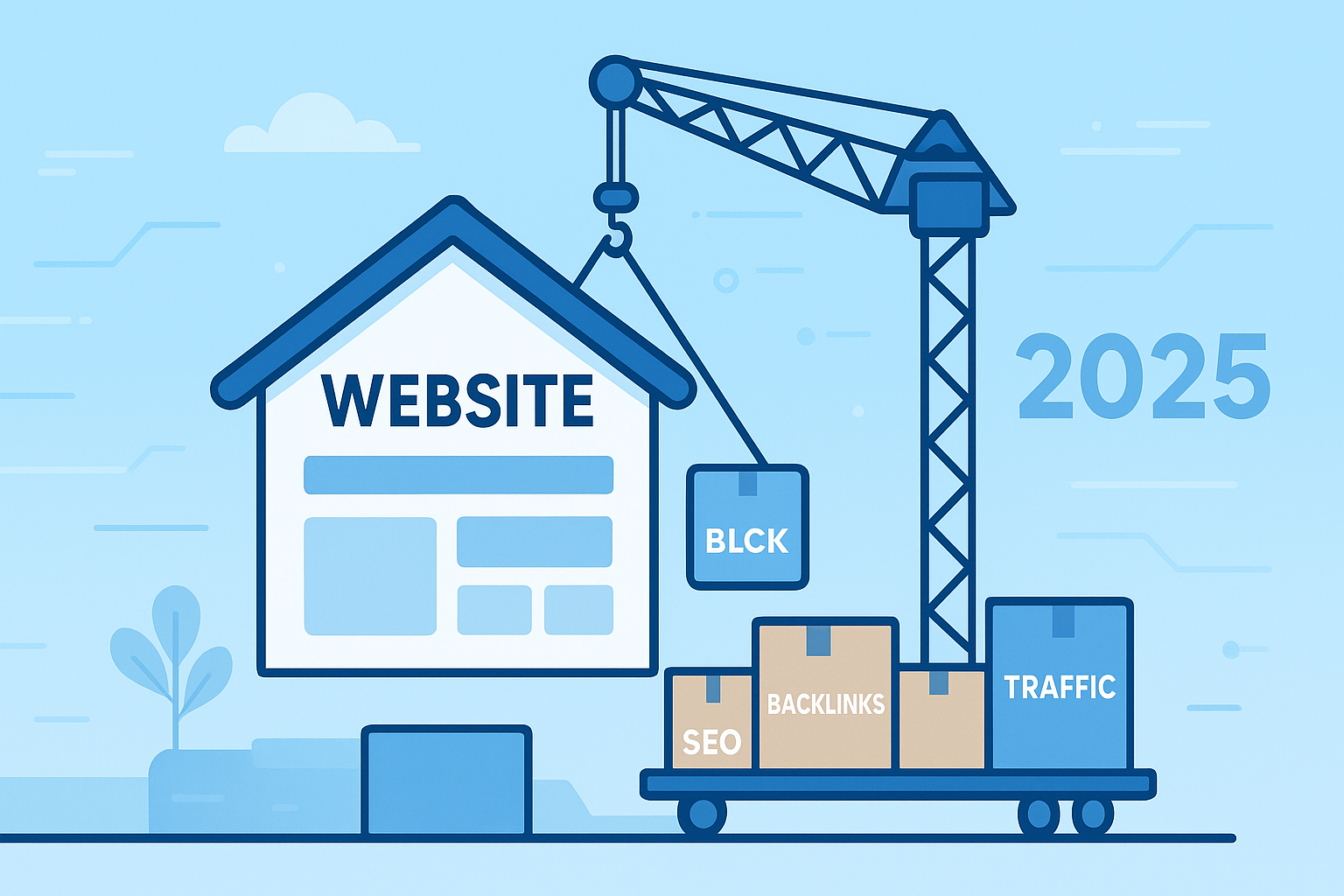
Migrating a website can feel like moving your entire house to a new location — one wrong move and your prized belongings (in this case, your SEO rankings and traffic) could get damaged. A poorly managed website migration can shake even the strongest SEO campaigns and disrupt your entire digital marketing strategy.
Whether you’re shifting from one hosting to another, changing your domain, or moving your site structure, there are critical steps you must follow to make the process SEO-friendly. Done right, you won’t just avoid losses — you might even see an improvement in rankings and speed.
In this 2025 Website Migration Guide, we’ll go step-by-step from beginner to advanced tips, ensuring you transfer your site smoothly, securely, and without harming SEO.
Table of Contents
Why Website Migration Can Hurt SEO
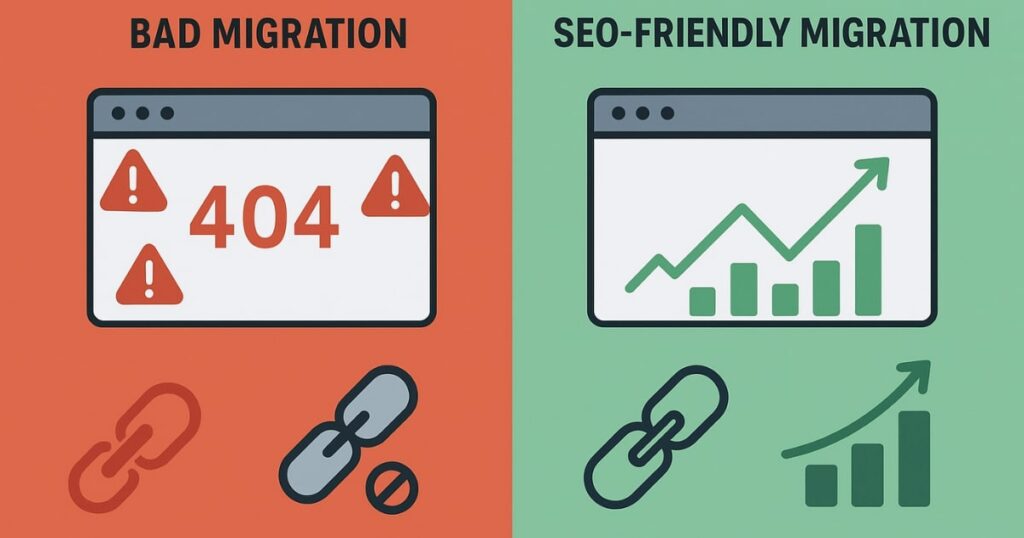
Before we jump into the steps, let’s understand the risk. Search engines rank your site based on hundreds of factors — content, backlinks, site speed, internal links, URL structure, and more. If migration breaks any of these, Google may see your site as “different” and drop your rankings.
Common migration disasters include:
- Losing important files
- Changing URL structures accidentally
- Dropping backlinks or redirect chains
- Slower server response time
- Robots.txt or sitemap issues
The good news? Every single one of these problems can be prevented if you prepare properly.
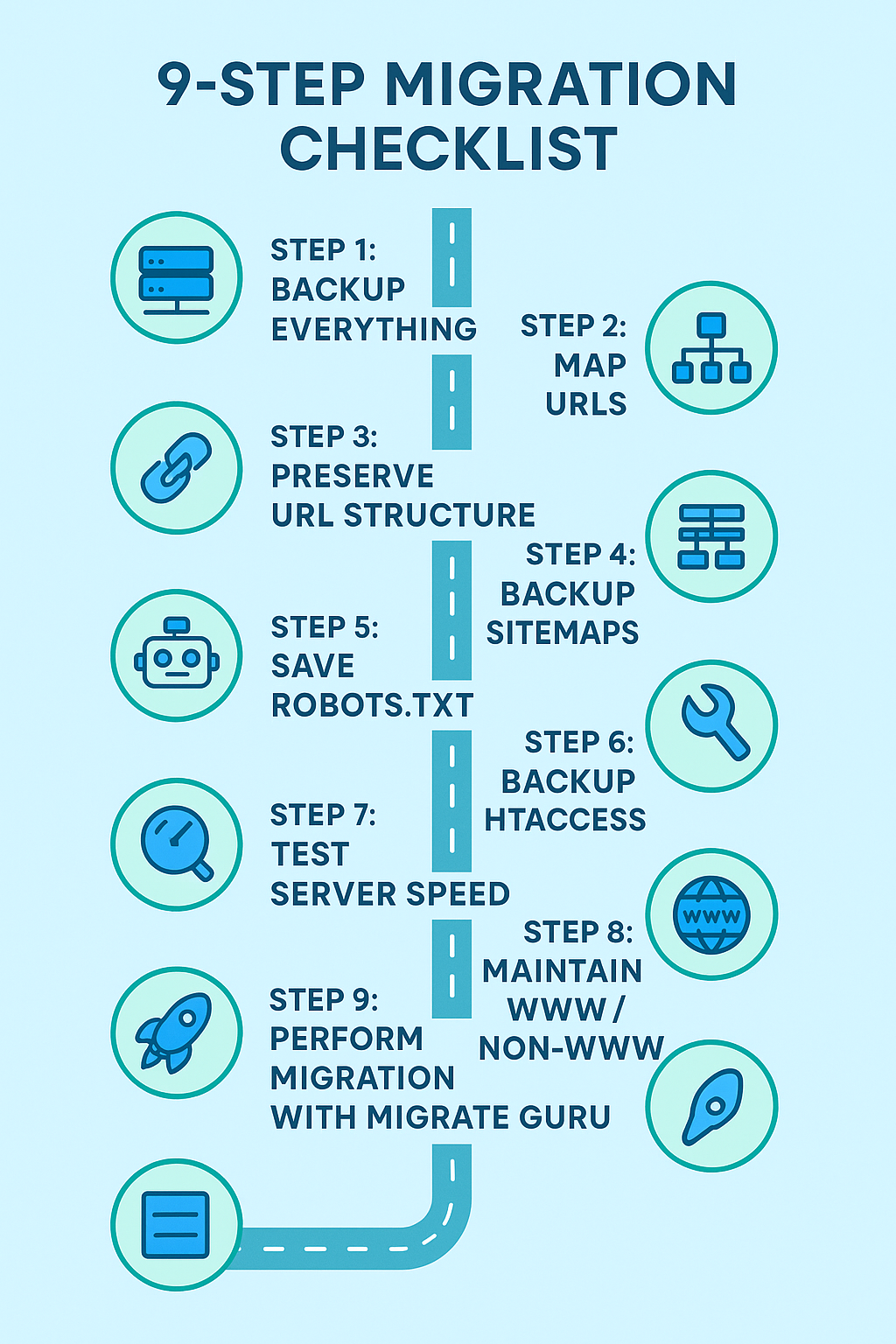
Step 1: Backup Everything (Not Just Your Website Files)
When you migrate, your old hosting account will eventually be closed, which means everything stored there — not just your website — could be lost. A typical plugin-based backup only grabs the files needed to run your website, but your server likely has many other important files:
- Email account details
- Document attachments
- Server configuration files
These may not seem urgent now, but the day you need them, you’ll regret not saving them.
The solution: Take a full manual server backup before migration.
You don’t need fancy tools. Just create an FTP account in your hosting panel (like cPanel), connect to it using FileZilla, and download all server folders into a clearly named local directory (e.g., “Server Backup”). This ensures every single file, including hidden ones, is preserved.
Step 2: Map Your URLs Before Migration
Your internal and external link structure is like your website’s nervous system — break it, and your SEO health suffers. While migration plugins usually copy everything, server settings or database issues can cause link mismatches.
Before migration:
- Use a crawling tool like Screaming Frog.
- Crawl your entire site and save the link data.
- This file will contain internal links, external links, meta titles, meta descriptions, and even canonical tags.
If anything breaks after migration, you’ll have this record to fix links quickly.
Step 3: Preserve Your URL Structure
Your URL structure is defined in WordPress by the Permalink settings. If your new hosting uses a different permalink structure, Google will see your pages as new URLs, and your existing rankings could disappear.
Before migration:
- Go to your old site’s WordPress dashboard → Settings → Permalinks
- Copy the exact settings
- After migration, paste the same settings in your new site
This ensures no accidental URL changes.
Step 4: Backup Your Sitemap Files
Your sitemap, generated by your SEO plugin, may not be saved by migration tools. A broken sitemap after migration can confuse Google about your site’s structure.
Manually save them:
- Open each sitemap URL in your browser
- Press Ctrl+S (or Command+S on Mac) to save them locally
- Save not just the sitemap index, but each linked sitemap file
Even if your new SEO plugin rebuilds them, you’ll have a backup in case it fails.
Step 5: Save Your Robots.txt File
Your robots.txt file tells search engines what to crawl and what to avoid. Some migration tools skip this file entirely.
To back it up:
- Type your domain +
/robots.txtin your browser - Copy everything into a text file
- After migration, paste it into the new site’s robots.txt file
This takes less than a minute but prevents massive crawl issues.
Step 6: Backup Your .htaccess File
Your .htaccess file is the control center for your site’s performance and redirection rules. Many migration plugins do not transfer it.
To save it:
- Open your hosting’s File Manager
- Enable “Show Hidden Files” in settings
- Locate
.htaccess, download it, and store it securely
This ensures your caching, redirects, and other server rules stay intact.
Step 7: Check Server Response Time
A faster server doesn’t always mean better performance for your specific site setup. Before committing to a new hosting provider, check the server response time for both your old and new hosting.
If the new hosting has slower response times, Googlebot might crawl your site less often, harming SEO. The safe method is to first migrate your site to a temporary domain on the new server and test speed before finalizing the move.
Step 8: Maintain the www / non-www Structure
This small detail is often overlooked. If your old site used “www” and your new installation drops it (or vice versa), you’ll be creating a completely new set of URLs in Google’s eyes.
Check this before migration:
- If your old site is on www, ensure your new WordPress installation is also set to www.
- Otherwise, you’ll lose SEO value unless you set up perfect redirects.
Step 9: Perform the Actual Migration (The Easy Way)
After all the preparation, the migration itself should be the easiest step. Instead of wrestling with file uploads, PHP limits, and database imports, use a reliable plugin.
Recommended tool: Migrate Guru
Why?
- No upload limits
- No need to edit PHP settings
- Completely free
- Supports top hosting providers like Cloudways, DreamHost, Liquid Web, WP Engine, and Flywheel
How it works:
- Install Migrate Guru on both your source (old) and destination (new) WordPress sites.
- On the destination site, click “Generate Migration Key.”
- On the source site, enter your email, paste the migration key, and click Migrate.
- Sit back and relax — the plugin handles the rest.
When it’s done, your new site will be an exact copy of the old one, including user accounts and settings.
Will SEO Rankings Drop After Migration?
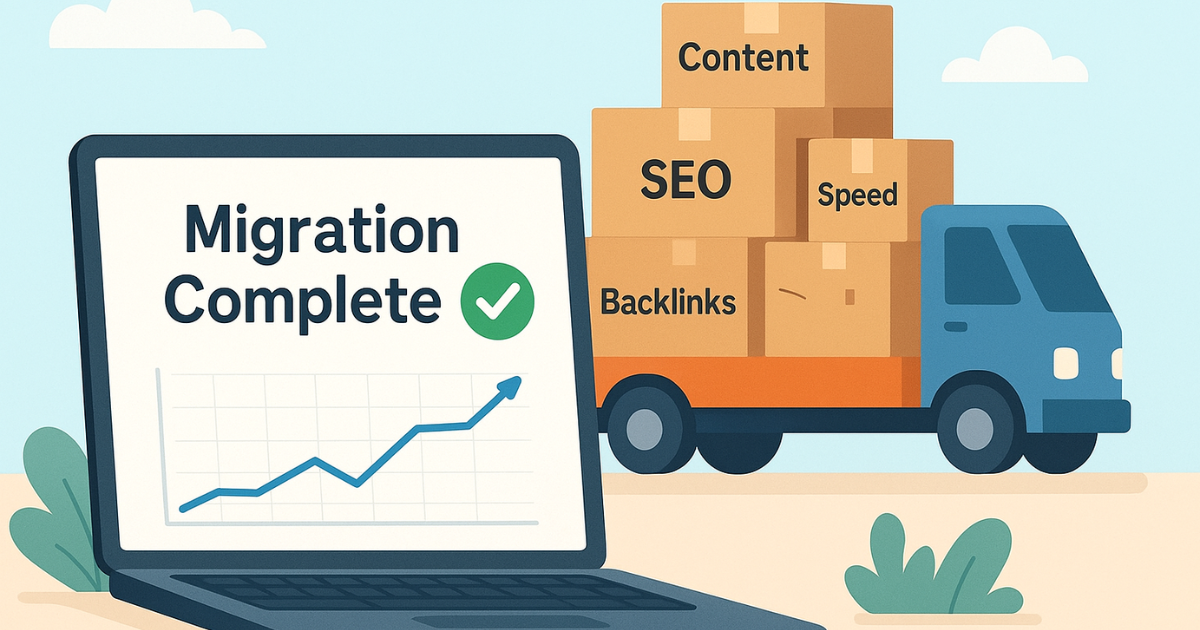
If you follow these nine steps carefully, your rankings should not drop at all. In fact, if your new hosting is faster and your internal structure remains intact, you could see a boost in rankings and traffic.
Most SEO migration horror stories come from skipping key steps like URL mapping, preserving .htaccess, or maintaining sitemap and robots.txt files. Don’t make those mistakes.
Final Thoughts
A properly executed website migration is like a well-planned home move — nothing gets broken, and the new place feels just as familiar, only better. Always plan ahead, back up more than you think you need, and test before going live.
When done right, you can move your website without losing a single day of traffic.
FAQs
Q1: How long does website migration take?
It depends on the size of your site and hosting speed. Using Migrate Guru, many sites finish in under 30 minutes.
Q2: Do I need to inform Google about my migration?
If you’re changing domains, yes — use Google Search Console’s Change of Address tool. For hosting changes with the same domain, it’s not necessary.
Q3: Will my SEO drop temporarily after migration?
Not if you follow the steps in this guide. Downtime, URL changes, or broken links are the main causes of ranking drops.
Q4: Can I migrate without any plugins?
Yes, you can do it manually via FTP and database exports, but it’s slower and riskier if you’re not experienced.
Q5: What’s the difference between www and non-www migration issues?
Changing between www and non-www creates different URLs. Without proper redirects, Google treats them as separate sites.
Q6: Should I migrate during peak traffic times?
No. Always migrate during low-traffic periods to minimize user disruption.