When we think about SEO, we often focus on text — blog posts, keywords, meta descriptions. But here’s the truth: images can make or break your website’s performance. They don’t just make your site look better; they can improve user experience, increase engagement, and even drive organic traffic directly from Google Images.
The problem? Many site owners ignore one crucial technical SEO step — creating an image sitemap. Without it, search engines may never fully index your images, leading to missed traffic opportunities.
In this guide, we’ll break down exactly what an image sitemap is, why it matters, and how to create one step-by-step for maximum SEO benefit. Whether you’re running a photography portfolio, an e-commerce store, or a content-heavy blog, you’ll see why this “hidden” SEO tactic can be a game-changer.
Table of Contents
Why Image Sitemaps Matter for SEO
Images aren’t just decorative elements. For Google, they’re separate assets with their own indexing process. While it might seem that having images embedded in your pages is enough, search engines don’t see them exactly the way humans do.
When a user visits a page, they see text, images, and videos together. But Google’s crawler sees your HTML code — and in that code, images appear as linked assets, separate from the main text content.
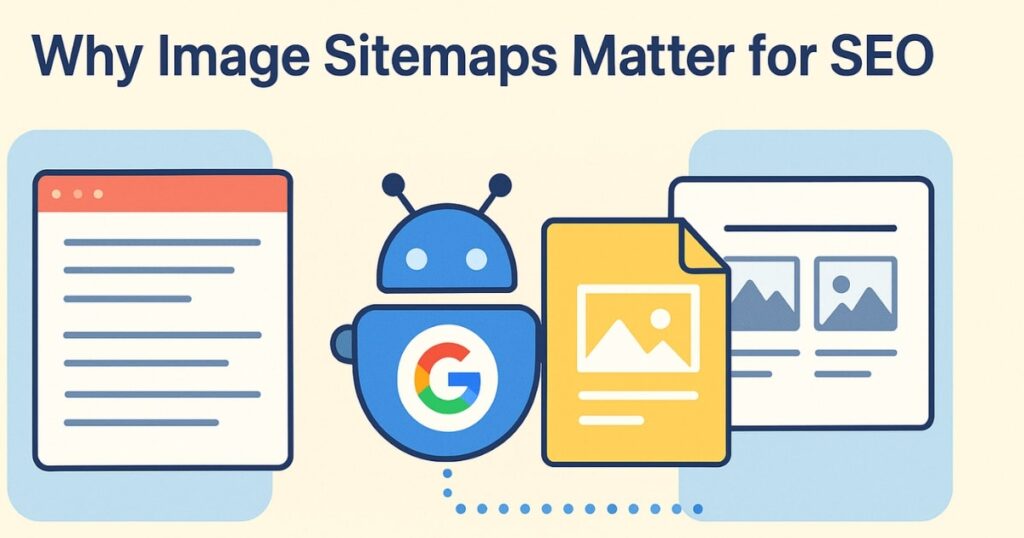
Here’s why an image sitemap matters:
- Faster Discovery – Without an image sitemap, Google may not discover every image on your site, especially if some are buried deep or loaded via scripts.
- Better Indexing – A sitemap tells search engines exactly where your images are and how they relate to your pages.
- More Traffic from Google Images – For image-heavy sites (photographers, designers, e-commerce stores, beauty brands), ranking in image search can drive huge traffic.
- Avoid Missed Opportunities – If an image takes too long to load or is hosted in a way that’s hard for Google to find, it might not get indexed at all.
Think of it like sending Google a VIP guest list of your most important visual content — they can’t ignore it if you hand it to them directly.
When You Need an Image Sitemap (and When You Don’t)
Not every site needs a separate image sitemap. If your site has 100–500 pages with only a few images per page, your regular XML sitemap (which already lists your page URLs) might be enough.
However, you absolutely need an image sitemap if:
- Your site has thousands of pages.
- You run an image-heavy business (e.g., photography, fashion, art, architecture).
- You use a CDN (Content Delivery Network) to host images separately from your main domain.
- You have unique or original visuals you want to rank for.
If images are a core part of your business, an image sitemap isn’t just nice to have — it’s essential.
Two Ways Images Are Typically Used on Websites
Before creating an image sitemap, you need to know how your images are hosted. There are two main cases:
- Images Uploaded Directly to the Website
This is the most common setup. Images are uploaded to your site’s own server and linked directly in the page’s HTML. - Images Hosted on a CDN (Separate Domain)
Here, images live on a separate domain (e.g.,images.example.com) to speed up delivery and reduce load on the main site.
The method you choose for building your image sitemap depends on which of these applies to you.
Method 1: Adding Images to Your Regular Sitemap
For sites where images are hosted directly on the main domain, you can include image URLs directly in your existing XML sitemap.
A normal sitemap looks like this:
xmlCopyEdit<urlset>
   <url>
      <loc>https://example.com/page1</loc>
   </url>
</urlset>
To include images, you simply add an <image:image> tag inside each <url> block for every image on that page:
xmlCopyEdit<url>
   <loc>https://example.com/page1</loc>
   <image:image>
      <image:loc>https://example.com/images/image1.jpg</image:loc>
   </image:image>
   <image:image>
      <image:loc>https://example.com/images/image2.jpg</image:loc>
   </image:image>
</url>
This tells Google:
- The page URL (
<loc>). - All image URLs related to that page (
<image:loc>).
Key limits to remember:
- Each sitemap file can list up to 50,000 URLs (this includes both page and image URLs combined).
- Maximum file size: 50 MB.
- You can list up to 1,000 images per page (though realistically, most sites won’t hit that limit).
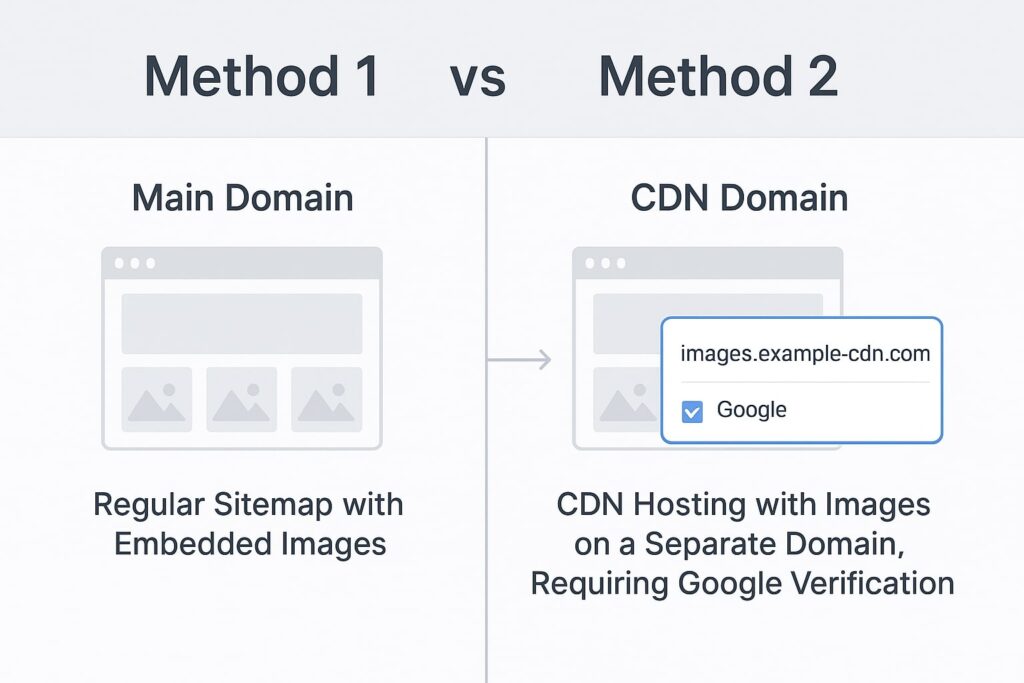
Method 2: When Images Are on a CDN
If your images are hosted on a different domain (like cdn.example.com or images.example.com), the process is similar — but with one extra step:
You must verify the CDN domain in Google Search Console just like your main site.
Example:
- Main website:
example.com(already verified). - Image CDN:
images.example.com(needs to be verified too).
Once both are verified, you can create an image sitemap exactly like in Method 1, just with the CDN’s image URLs instead of your main domain’s.
Creating an Image Sitemap with Screaming Frog
Manually adding every image URL to your sitemap would take forever. That’s why tools like Screaming Frog SEO Spider are incredibly helpful.
Here’s how:
- Crawl Your Website – Open Screaming Frog, enter your site URL, and let it crawl all pages and images.
- Go to the ‘Sitemaps’ Section – Once crawling is complete, click on “Sitemaps” in the menu.
- Select ‘Image Sitemap’ – This option lets you generate an image-specific sitemap.
- Configure Settings – You’ll see options like:
- Include Noindex Images: Leave unchecked unless you want noindex images included.
- Limit Images per Page: Default is 10. Increase if you have image-heavy pages.
- Export the Sitemap – Save the file in XML format.
- Upload to Your Website – Usually in the root directory.
- Submit to Google Search Console – This tells Google where to find it.
Best Practices for Image SEO
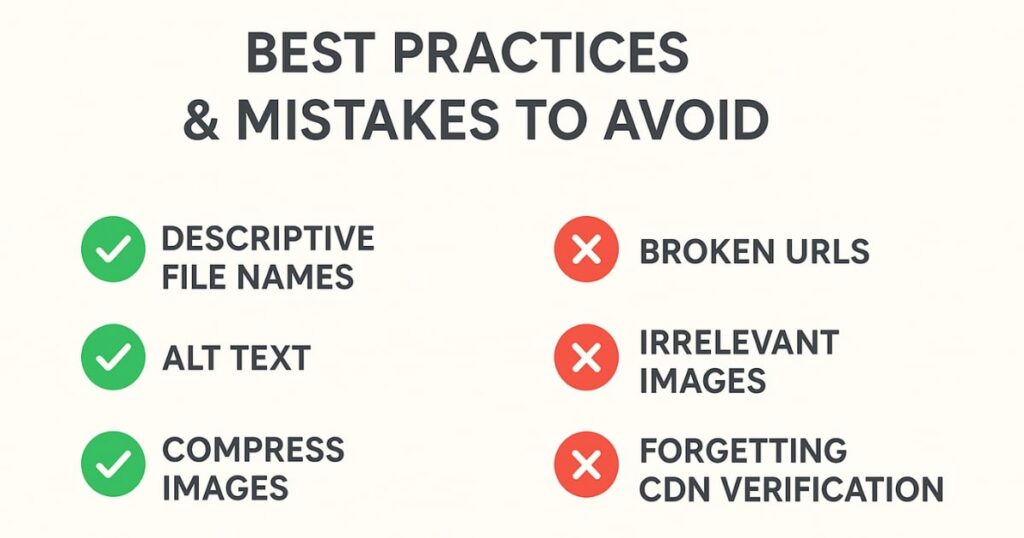
Creating an image sitemap is step one. But to really maximize traffic from images, follow these tips:
- Use descriptive file names – Instead of
IMG123.jpg, usered-running-shoes.jpg. - Add alt text – Helps with accessibility and keyword relevance.
- Use the right format – JPEG for photos, PNG for transparency, WebP for smaller file sizes.
- Compress images – Keep load times fast without sacrificing quality.
- Ensure mobile-friendliness – Google prioritizes responsive, mobile-ready images.
Common Mistakes to Avoid
Many people make these errors when working with image sitemaps:
- Forgetting to verify the CDN domain – Without this, Google won’t index those images.
- Listing broken image URLs – Double-check that all images in your sitemap load correctly.
- Overloading with irrelevant images – Focus on images that matter for search and user experience.
- Ignoring structured data – Product images, for example, can benefit from schema markup.
Final Thoughts
An image sitemap is not just a technical extra — it’s a way to make sure your visual content gets the attention it deserves from search engines. If you’re in an industry where visuals sell your product, skipping this step is like hiding your best work in a locked drawer.
Take the time to implement one of the two methods we discussed, verify your domains, and submit your sitemap to Google. Then watch as your images start showing up in search results, driving more clicks and engagement to your site.
Your images are powerful — let Google see them.
FAQs
1. What is an image sitemap?
An image sitemap is a file that lists all the important images on your site, helping search engines find and index them more efficiently.
2. Do I need an image sitemap if I already have a regular XML sitemap?
Not always. If your site has few images, your main sitemap may be enough. But for image-heavy or large sites, a dedicated image sitemap improves visibility.
3. How many images can I add per page in a sitemap?
You can list up to 1,000 images per page, but most sites don’t need that many.
4. Can I create an image sitemap manually?
Yes, but it’s tedious for large sites. Tools like Screaming Frog or Yoast SEO can automate the process.
5. Should I include noindex images in my sitemap?
Generally, no. Including noindex images can send mixed signals to search engines.
6. What happens if my images are hosted on a CDN?
You must verify the CDN domain in Google Search Console before adding its image URLs to your sitemap.
7. Does image file size affect SEO?
Yes. Large, slow-loading images can hurt rankings. Compress files without losing quality.