If you run a website, you’ve probably heard the term Schema Data (or structured data) tossed around in SEO discussions. For many site owners, it’s a mystery that sounds overly technical — something best left to developers. But in reality, Schema Data is one of the most powerful ways to help search engines understand your site, and with tools like Rank Math, it’s easier than you think to implement and manage it.
In this guide, we’ll walk through exactly how to add, customize, and manage Schema Data in WordPress using Rank Math — starting from the basics and moving to advanced setups. Whether you’re running a blog, a news site, or an e-commerce store, you’ll learn step-by-step how to optimize your structured data for better visibility in Google search results.
Table of Contents
What Is Schema Data and Why Does It Matter?
Schema Data is essentially a standardized set of tags that tell search engines what your web page is about. Instead of leaving Google to guess, you’re giving it clear, structured information about your content:
- Who created it
- When it was published
- What type of content it is
- The specific details inside (e.g., product price, author name, ratings)
Search engines like Google use this structured data to enhance search listings with rich snippets — those extra bits of info like ratings, prices, author names, event times, and more.
Without Schema Data, Google still might index your page, but it won’t have the context needed to display these enhanced results. And in SEO, those extra details can make a huge difference in click-through rates.
The Challenge with Schema Data
Here’s the tricky part:
Manually creating and maintaining Schema Data can be time-consuming and error-prone. You’d have to write JSON-LD code (the format Google prefers), test it, fix validation issues, and keep it updated when your content changes.
That’s where Rank Math comes in. This popular WordPress SEO plugin includes built-in tools to generate and manage Schema Data automatically — no coding skills needed.
Getting Started with Rank Math for Schema
Before diving into customization, you need to make sure Schema support is enabled in Rank Math.
- Go to your WordPress Dashboard → Rank Math → Dashboard.
- Look for the Schema (Structured Data) module.
- Toggle it ON.
If this module is off, none of the Schema features will work — so this is your first checkpoint.
Default Schema Settings in Rank Math
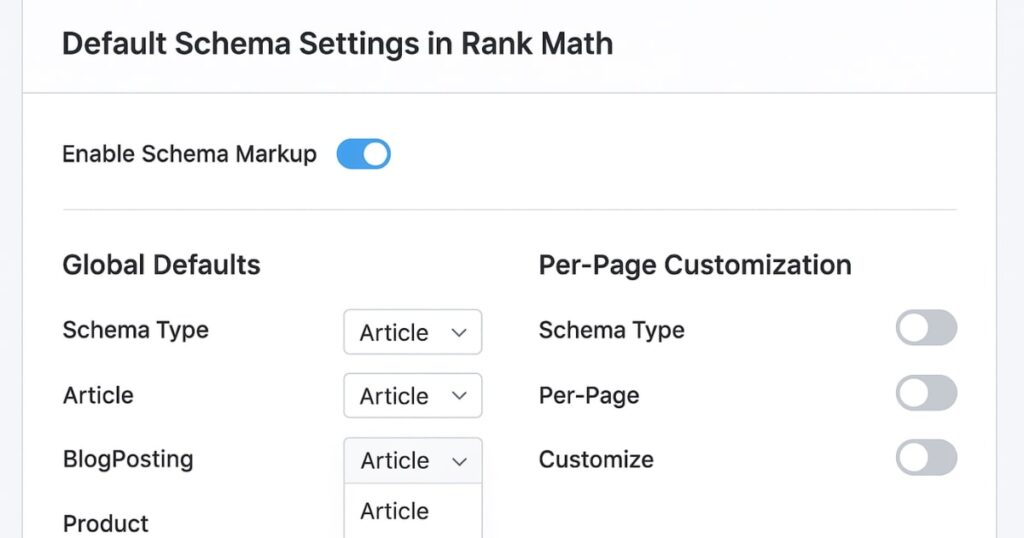
Rank Math gives you two levels of Schema control:
- Global Defaults – The Schema type you set here applies automatically to all posts, pages, and custom post types (like products or testimonials).
- Per-Page Customization – You can override the default Schema for any individual page or post.
For example:
- A news site might set the default Schema to NewsArticle.
- A blog might use BlogPosting.
- A business website might stick to the standard Article type.
To set the default:
- Navigate to Rank Math → Titles & Meta → choose the post type (Posts, Pages, Products, etc.).
- Under Schema Type, select the one that fits best.
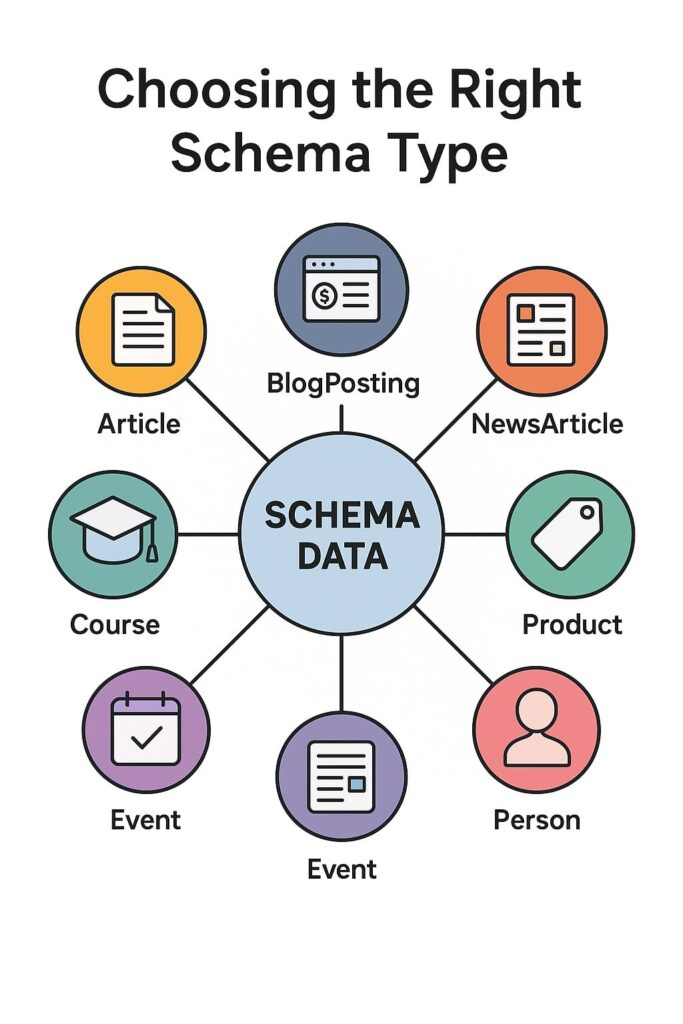
Choosing the Right Schema Type
The Schema type you select should match the content’s nature. Here are some common examples:
- Article – Suitable for general articles, blog posts, or business updates.
- NewsArticle – For timely news coverage.
- BlogPosting – Ideal for personal or niche blogs.
- Product – For e-commerce product pages.
- Person – For biography or profile pages.
- Book, Course, Event, Recipe – For specialized content.
Rank Math’s free version supports one Schema type per post/page. The Pro version allows multiple types on the same page — great for complex content (e.g., an article that also features an event listing).
Example: Setting Article Schema for All Posts
Let’s say your website mostly publishes informative articles.
- Set the default Schema type to Article.
- Rank Math will automatically pull the SEO title as the Schema headline and your post excerpt or meta description as the Schema description.
- If you want to tweak this globally, you can replace the default variables. For example:
- Headline:
%title% – Best Dental Clinic - Description:
%seo_title% – %excerpt%
- Headline:
This way, every post automatically gets consistent, optimized structured data without manual editing.
Handling Pages Differently
Pages often serve a different purpose than posts. If your pages are about people (e.g., celebrity profiles), you might set the Schema type to Person. Rank Math will then use the page title as the person’s name and the excerpt as their description.
However, in the free version, customization options for certain types like Person are limited. You may only be able to set basic fields like headline and description.
Working with Product Schema
If you run an online store (WooCommerce or similar), Product Schema is essential. Rank Math can pull product data directly from your product fields:
- Product name
- Price
- SKU
- Category
- Brand
- Availability
- Ratings & reviews
For example, if your product is “Running Shoes” priced at $999, Rank Math will extract this from WooCommerce fields and generate JSON-LD markup that Google can read. If no reviews are available, that field will simply be omitted.
Customizing Schema for Individual Posts
Sometimes, the default Schema just won’t cut it. You may want to:
- Change the Schema type for a specific page
- Write a custom headline/description for structured data (different from your SEO meta)
To do this:
- Edit the post/page in WordPress.
- In the Rank Math sidebar, click the Schema tab.
- Click Schema Generator.
- Select a different type or edit existing fields.
For example:
- Change the type from Article to Person for a biography page.
- Add a custom headline like “Exclusive Interview with Dr. Smith” while keeping your on-page title different.
Testing Your Schema
After setting up Schema, always test it. Use Google’s Rich Results Test tool:
- Go to https://search.google.com/test/rich-results
- Enter your page URL.
- Check for warnings or errors.
If Google detects the Schema correctly, you’ll see the recognized type (e.g., Article, Product, Person) and its fields.
Free vs Pro: What Changes?
The free version of Rank Math is powerful, but Pro unlocks more advanced control:
- Multiple Schema Types per page – Combine Article + Person + Course for rich, layered data.
- Custom Schema Templates – Save time by creating reusable templates for specific content types.
- Advanced Properties – Add detailed fields like gender for Person Schema, course duration for Course Schema, etc.
- Speakable Schema – Mark text that’s optimized for voice assistants like Google Assistant.
Example:
If you run an online course website, you could have:
- Course Schema for the course details
- Person Schema for the instructor’s profile
- Article Schema for the blog post describing the course
Making Use of Speakable Schema
Speakable Schema tells smart devices which part of your content should be read aloud in response to voice queries. This is especially useful for news articles and Q&A pages.
In Rank Math Pro:
- Enable Speakable Schema for a page.
- Select the CSS class or ID of the paragraph you want read aloud.
- Rank Math will include this in the structured data.
Adding Rich Details for Person Schema
For biography pages, don’t stop at name and description. Rank Math Pro lets you add:
- Email address
- Job title
- Physical address
- Gender
- Links to social media profiles (Facebook, Instagram, LinkedIn, etc.)
The richer your data, the better search engines can match your content to relevant queries.
Why Proper Schema Implementation Pays Off

When your Schema is accurate and detailed, you increase the chances of appearing with rich results — star ratings, price tags, event times, and even author information in search.
More importantly, it builds trust with search engines. The more clearly you communicate what’s on your page, the less Google has to guess — and the more confident it feels ranking you higher.
Final Tips for Using Rank Math Schema
- Always test after changes – Catch issues before Google does.
- Match Schema to reality – Never mark something as a Product unless it’s truly a product. Misleading Schema can lead to manual penalties.
- Use templates for speed – If you publish a lot of similar content, templates save hours.
- Keep it updated – Outdated prices or event dates in Schema can hurt your credibility.
With Rank Math, implementing Schema Data in WordPress doesn’t have to be intimidating. Once your defaults are set, much of the process becomes automatic — leaving you free to fine-tune only when necessary. And for those who need advanced control, the Pro version offers tools that rival expensive standalone Schema plugins.
FAQs
1. What is Schema Data in SEO?
Schema Data is a structured format that tells search engines exactly what your content is about, enabling rich results in search.
2. Can I add multiple Schema types in Rank Math free version?
No. The free version allows only one Schema type per post/page. The Pro version allows multiple.
3. Do I need coding skills to use Rank Math Schema?
Not at all. Rank Math generates the necessary JSON-LD code for you.
4. How do I test if my Schema is working?
Use Google’s Rich Results Test tool to check your page for valid Schema markup.
5. Is Speakable Schema important for SEO?
Yes, especially for voice search. It helps smart devices read your content aloud for relevant queries.
6. Can incorrect Schema hurt my rankings?
Yes. Misleading or spammy Schema can result in penalties from Google.